To print a QR code, download a suitable image, place it in your artwork without stretching or cropping it, and test a real printed copy. The file can be correct while the final print still needs adjustments.
Think of the test print as part of making the code. A code viewed on a bright laptop screen has not yet been checked on a small label, a curved bottle, or a poster behind glass.
Choose the destination and download
Open the destination on a phone before making the code. For example, a product leaflet should open the right product's instructions, not a general homepage that leaves the customer searching again.
You can create the link code with YouQR's QR code generator, then choose an available download format for your layout. A vector format such as SVG is useful when the design software supports it; a PNG needs enough resolution for the intended printed size. A PDF is useful for a print-ready document. Check the exported file rather than using a small preview screenshot.
Keep the pattern and its margin intact
Resize the code proportionally. Leave its clear outer area in place instead of trimming it to make the square look neater. DENSO WAVE specifies a margin of four small QR cells, or modules, around a standard QR symbol. See its code-area guidance.
That margin is not a universal number of millimetres: it changes with the module size. Text, borders, and nearby artwork should stay outside it. Use a clear light-dark contrast and avoid placing a transparent code over an unpredictable photograph.
Print one finished copy and test it
- Print at the size and on the material you intend to use.
- Check that the layout or printer has not cropped or distorted the image.
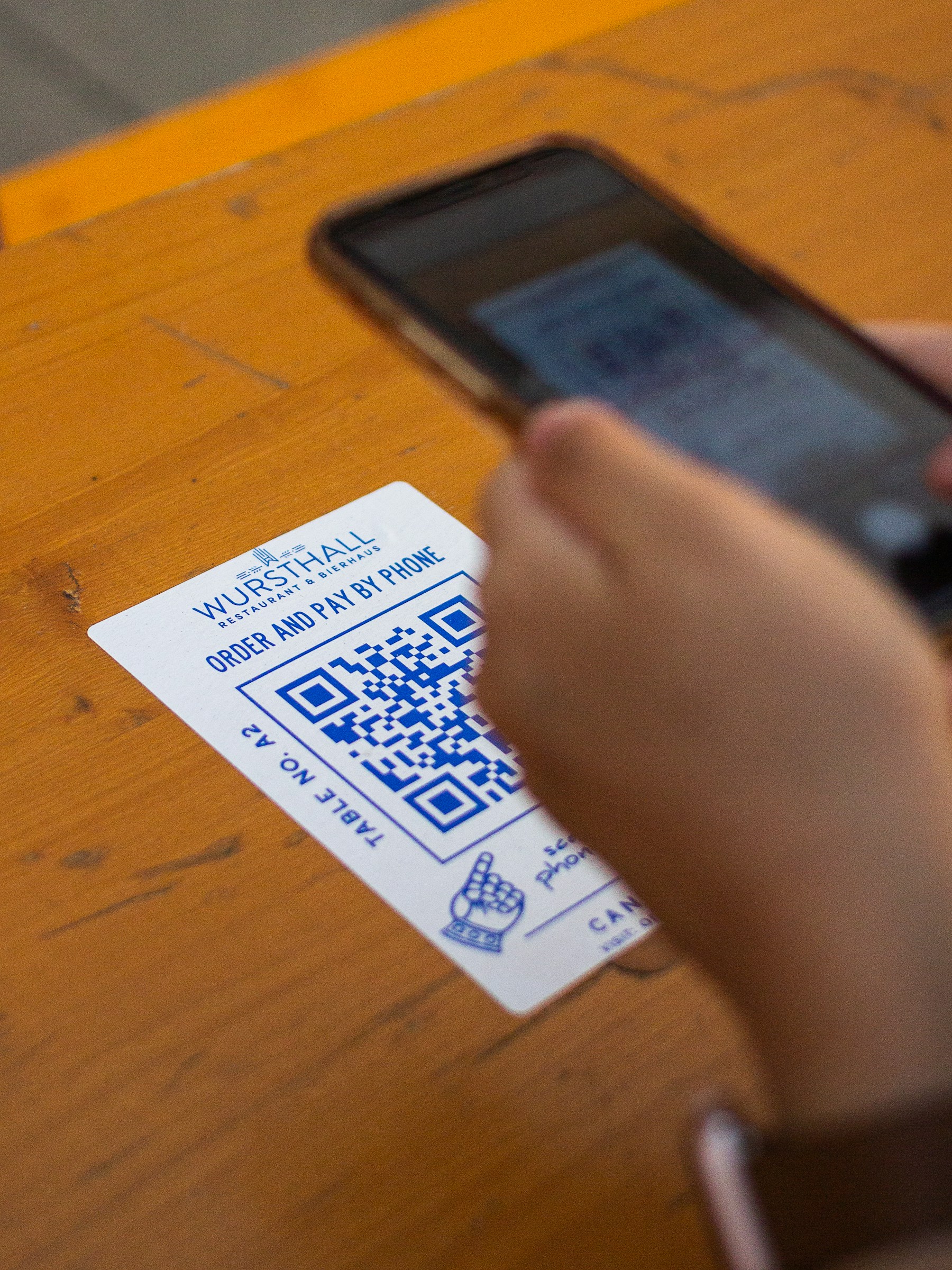
- Scan from the distance and angle a reader is likely to use.
- Try more than one representative phone where practical.
- Open the result and confirm the destination, not just recognition of the pattern.
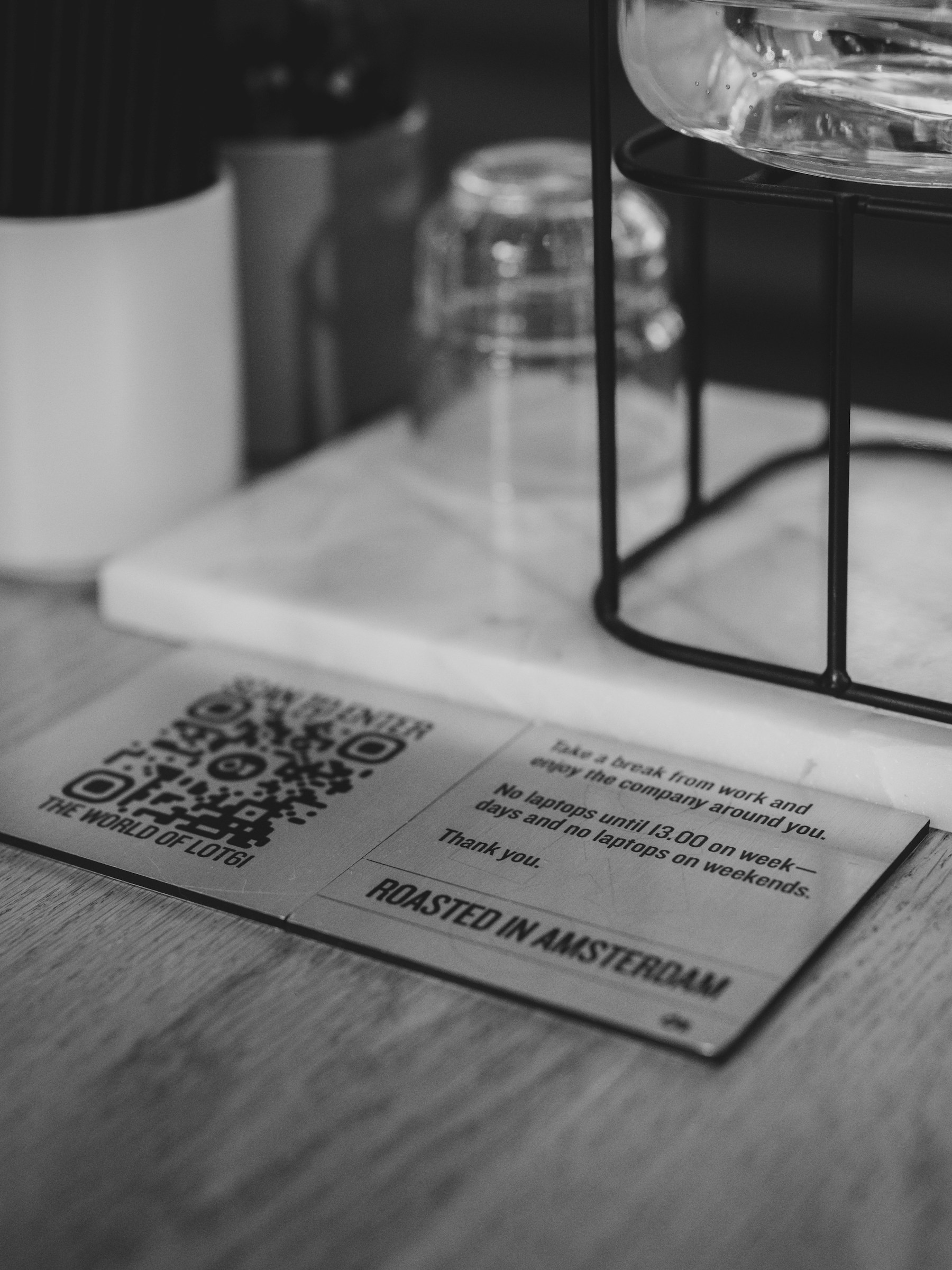
For an illustrative counter sign, check it while standing where the customer would stand. For packaging, attach the sample to the actual surface. If recognition is awkward, try a larger code or a clearer position and test again.
Frequently asked questions
Is there one minimum size for every printed QR?
No single size guarantees every situation. The pattern, printing quality, surface, viewing distance, and device all matter.
Can I print the same code more than once?
Yes. Copies of the same code open the same encoded destination or redirect. Use separate destinations when the task requires different content.
Should I test before adding a logo?
Test the final version after adding the logo and placing it in the layout. Earlier tests do not establish that later edits still scan.
What should I put beside the code?
A specific caption, such as “Scan for assembly instructions,” tells the reader what to expect. A short written alternative link can help too.